Editor extension
Themvora for VS Code
Explore, preview, create, inspect, compare and validate Themvora themes without leaving your editor. Studio reads the themes already in your project, shows you what they actually resolve to, and writes new ones back as a file you can commit.
It works on the themes in your application — not your editor's colour theme, which it never changes.
Not yet published to the Visual Studio Marketplace.
1What you can do
Explore your themes
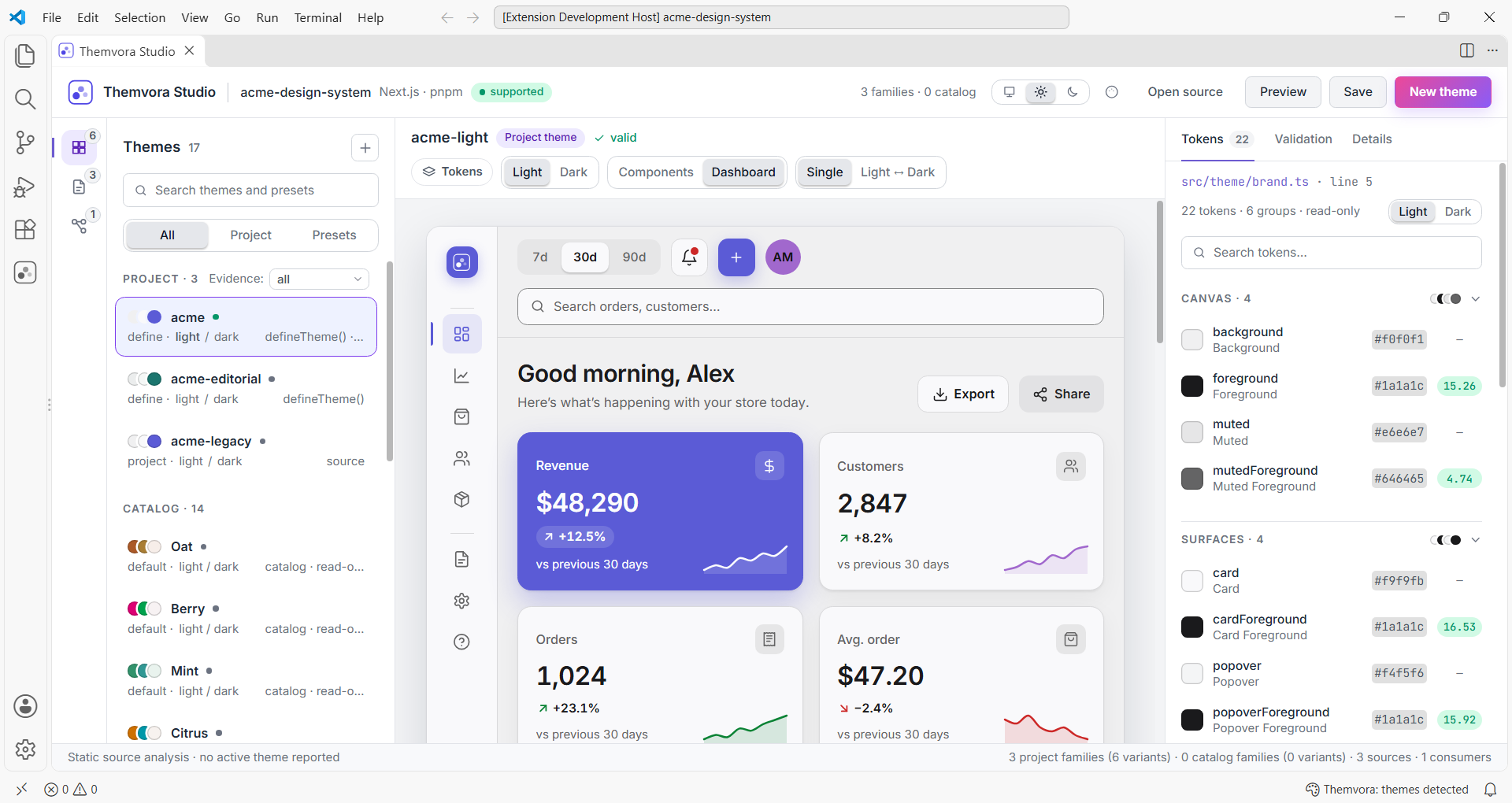
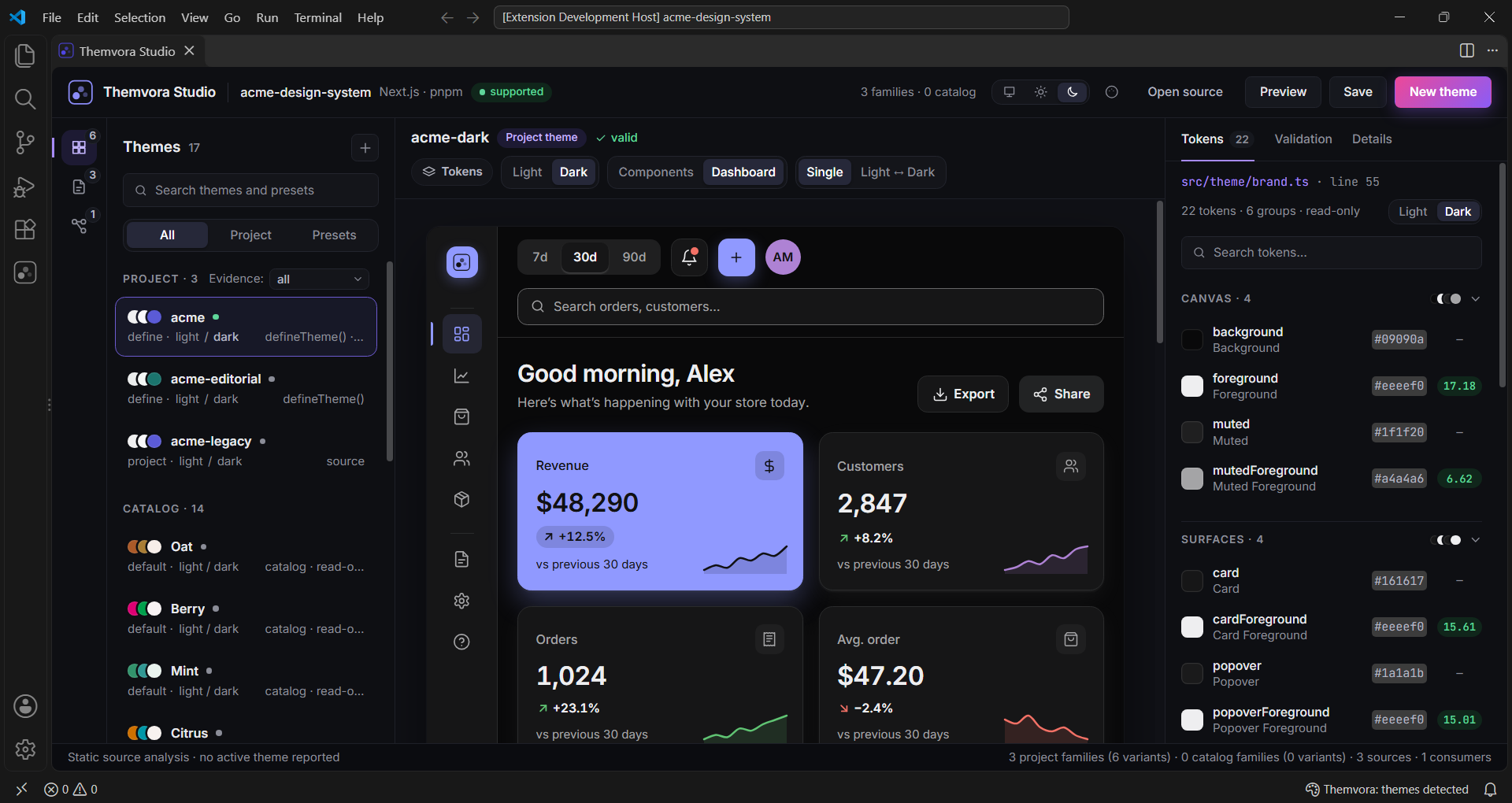
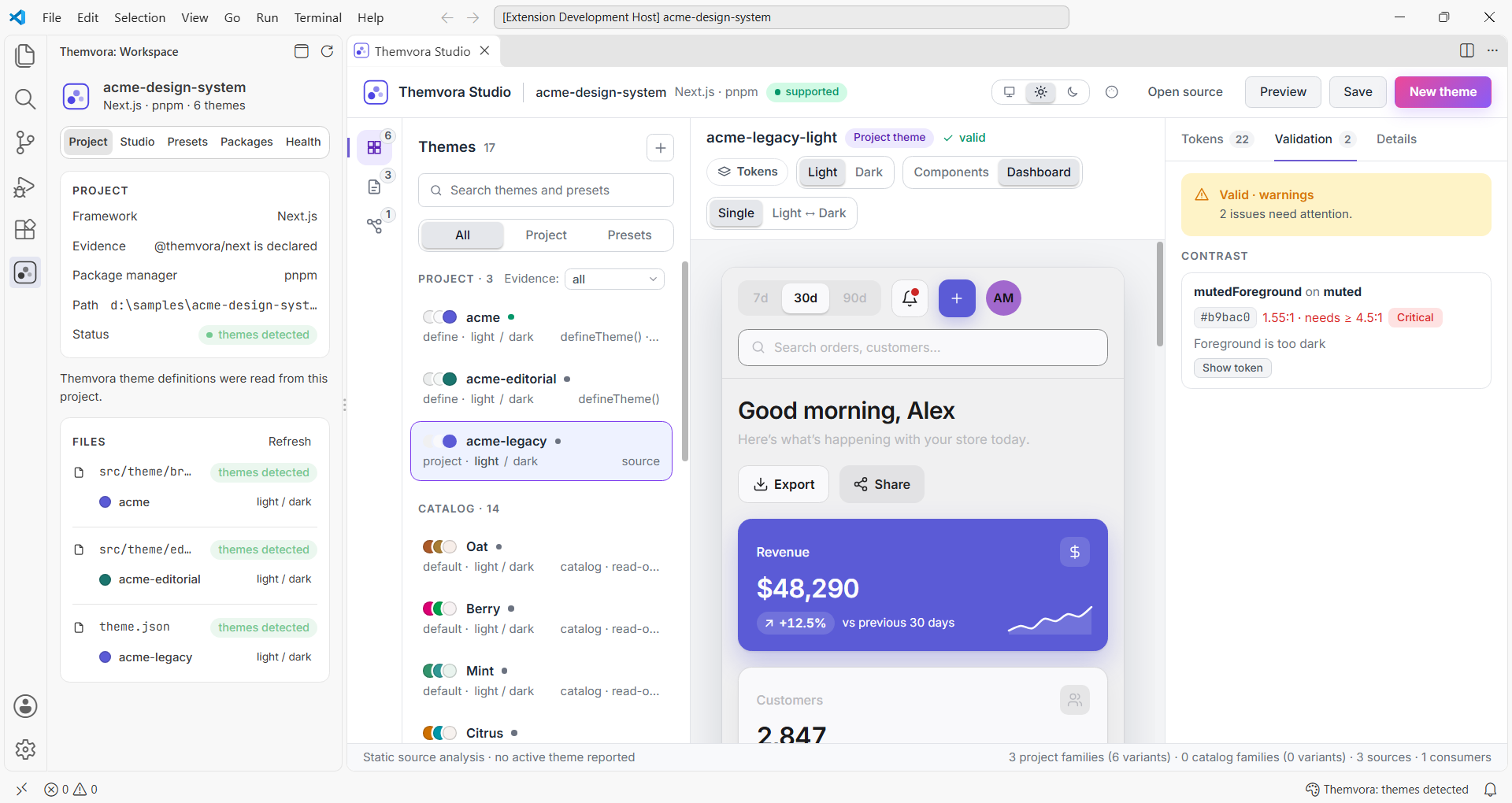
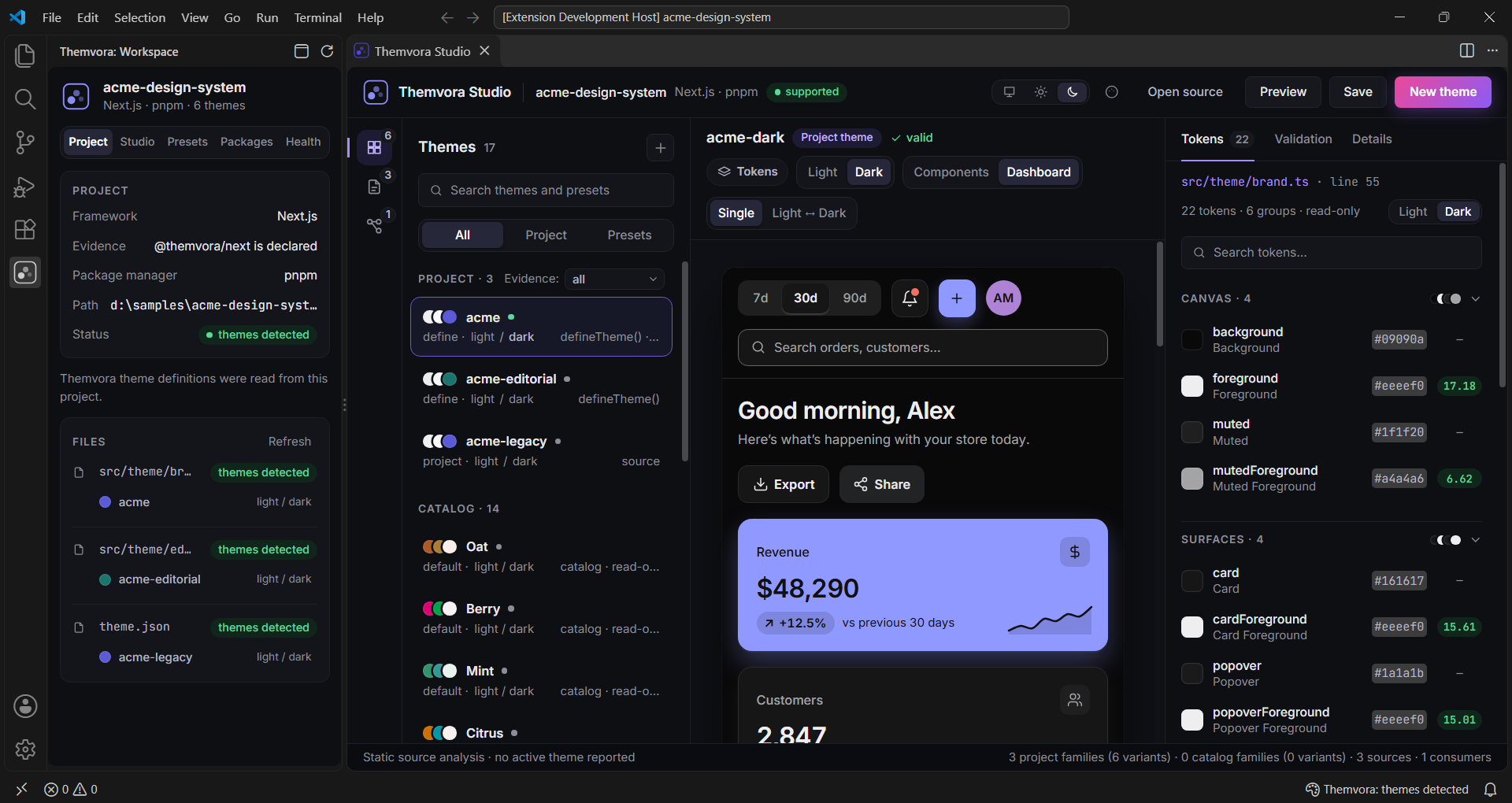
See every theme Studio can find: the ones your project defines, the presets that ship with Themvora, and any draft you are working on. Each card shows its palette, its family, whether it is light or dark, where it came from and which file it lives in — so you can tell at a glance what you are working with.
Preview before you commit to a theme
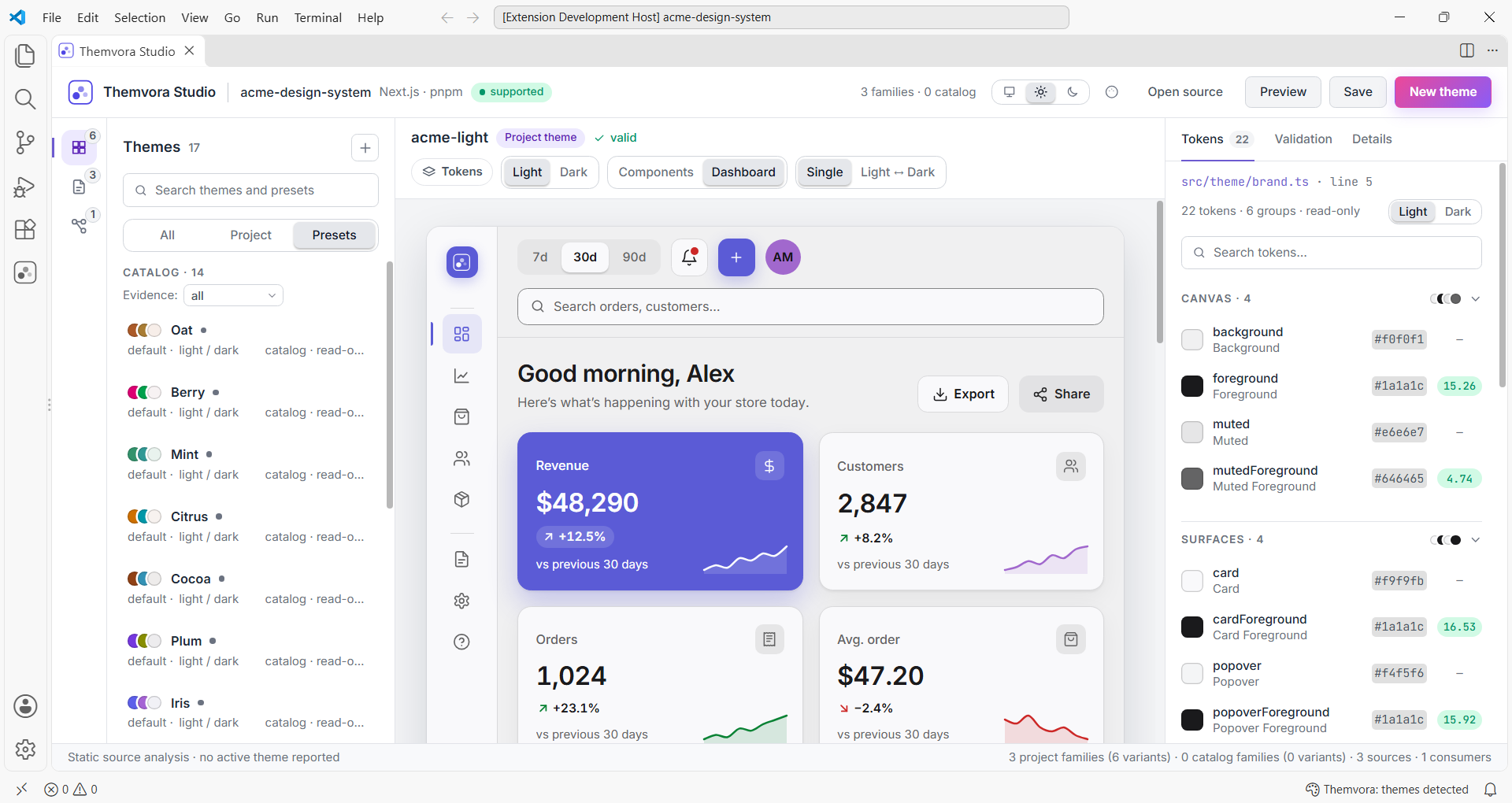
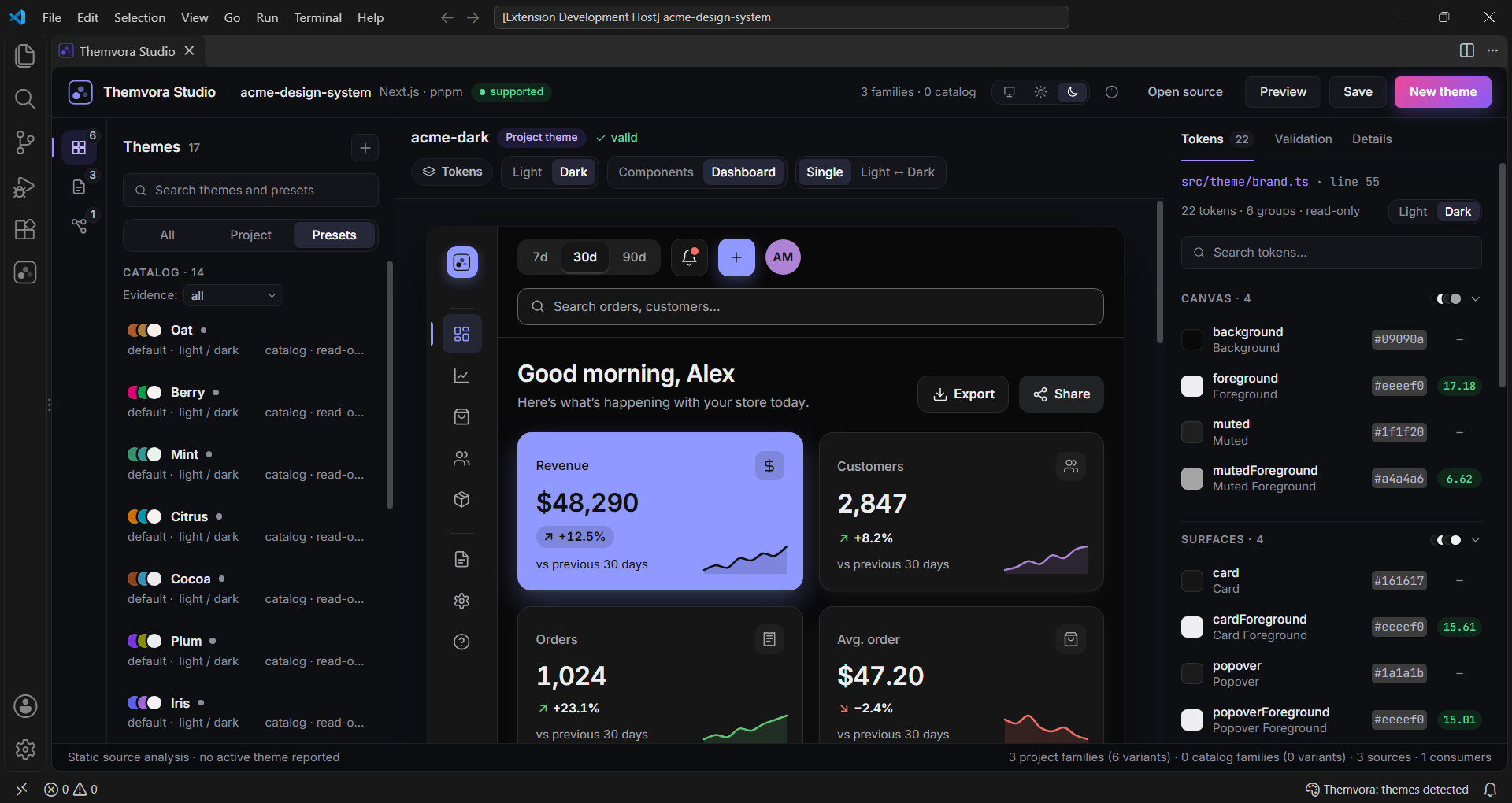
The canvas renders a dashboard or a component gallery from the selected theme's real tokens — navigation, cards, charts, tables, forms and status colours. Where a family has both light and dark variants, you can look at each one. Hovering a token name outlines every place it is used, so you can see what a single change would touch.
Inspect design tokens
Every colour token shows its value, the CSS custom property it maps to, and its measured contrast against the surfaces it sits on. You do not have to work the ratio out yourself, and you do not have to guess which pair is the problem.
Create your own theme
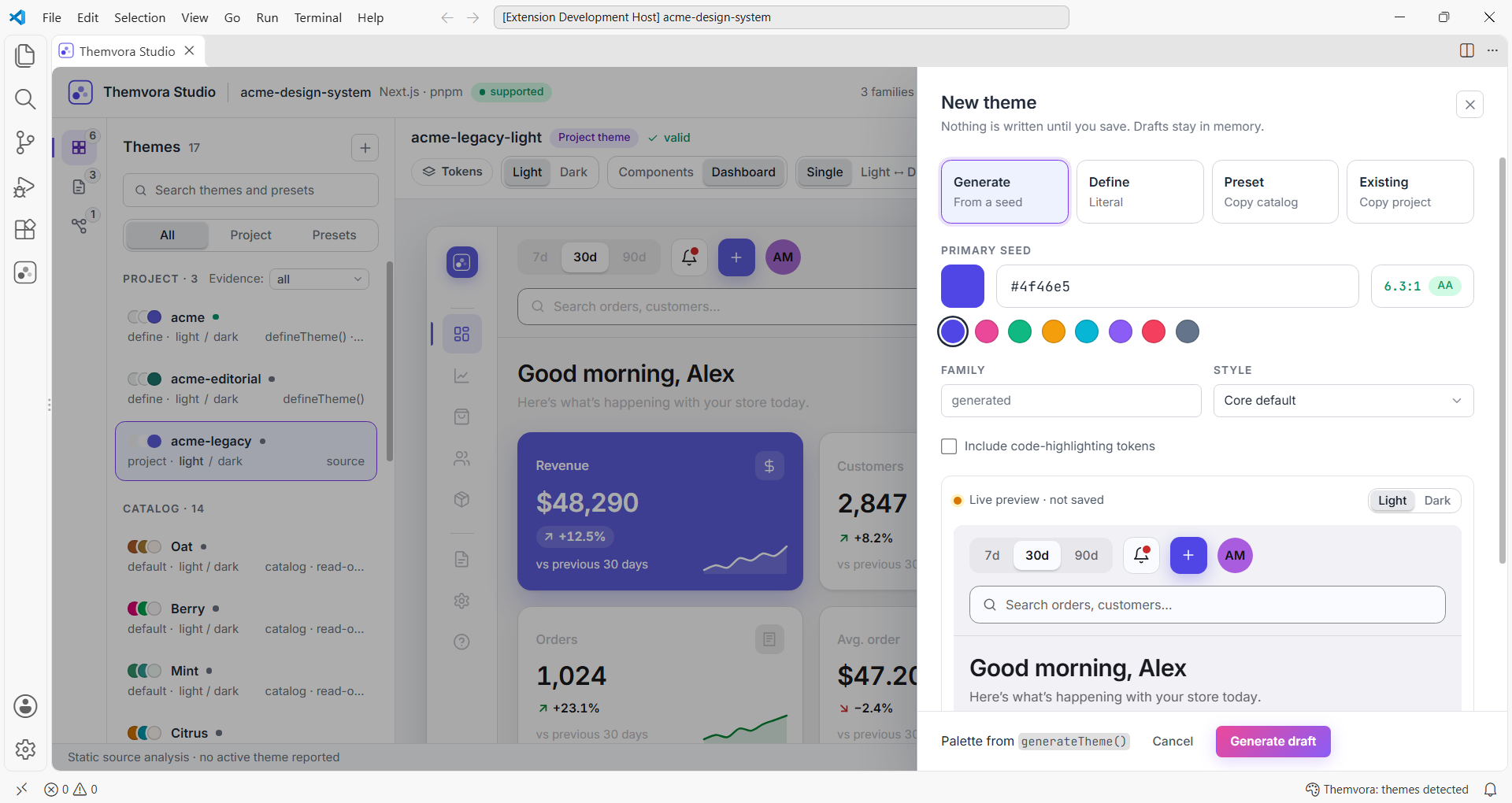
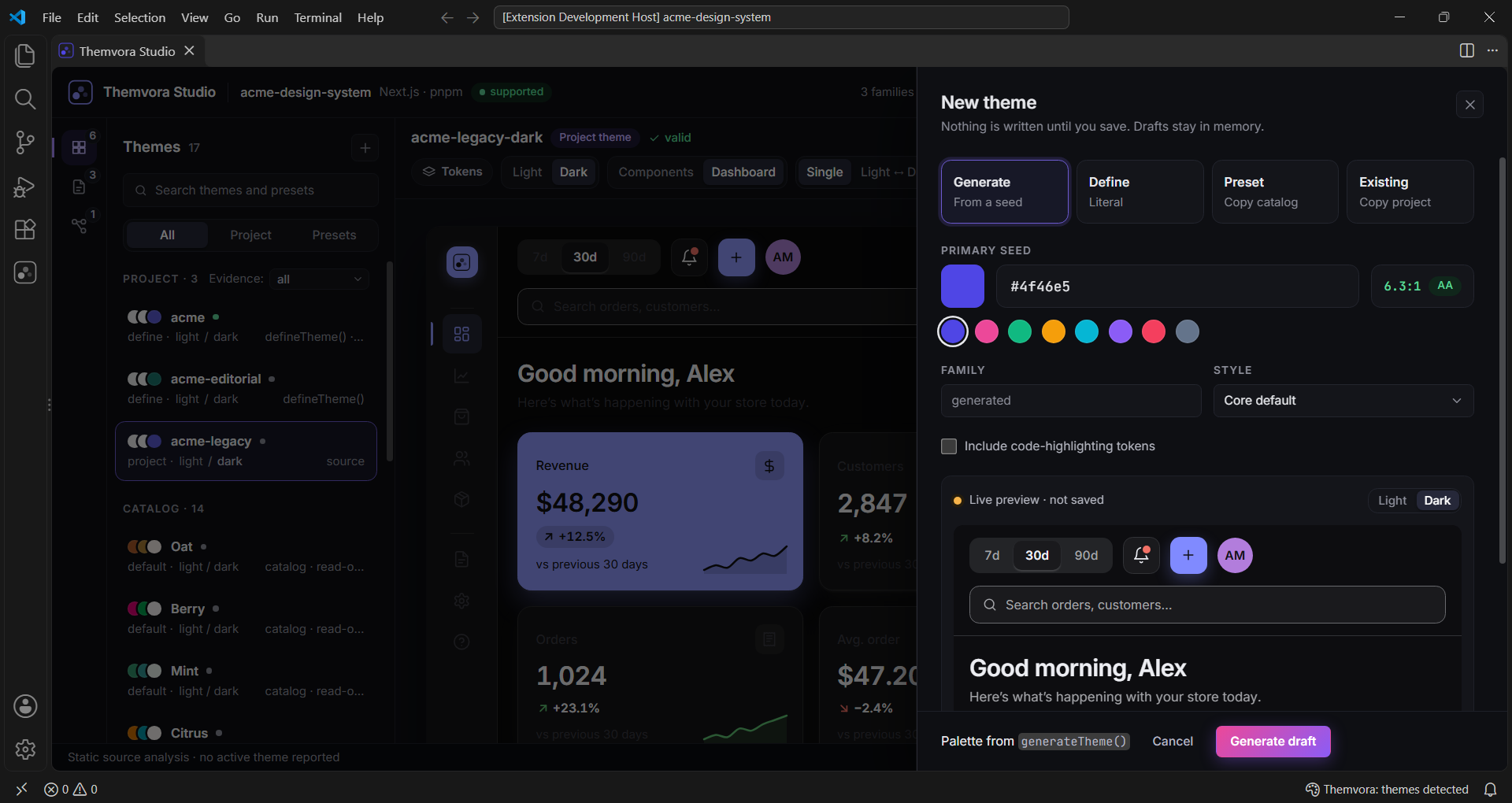
Start from a seed colour, copy a preset, or branch off a theme your project already has. The drawer previews every change as you make it, and nothing is written to disk until you choose to save. When you are ready, save as JSON, as TypeScript using defineTheme(), or as CSS variables.
Validate a theme
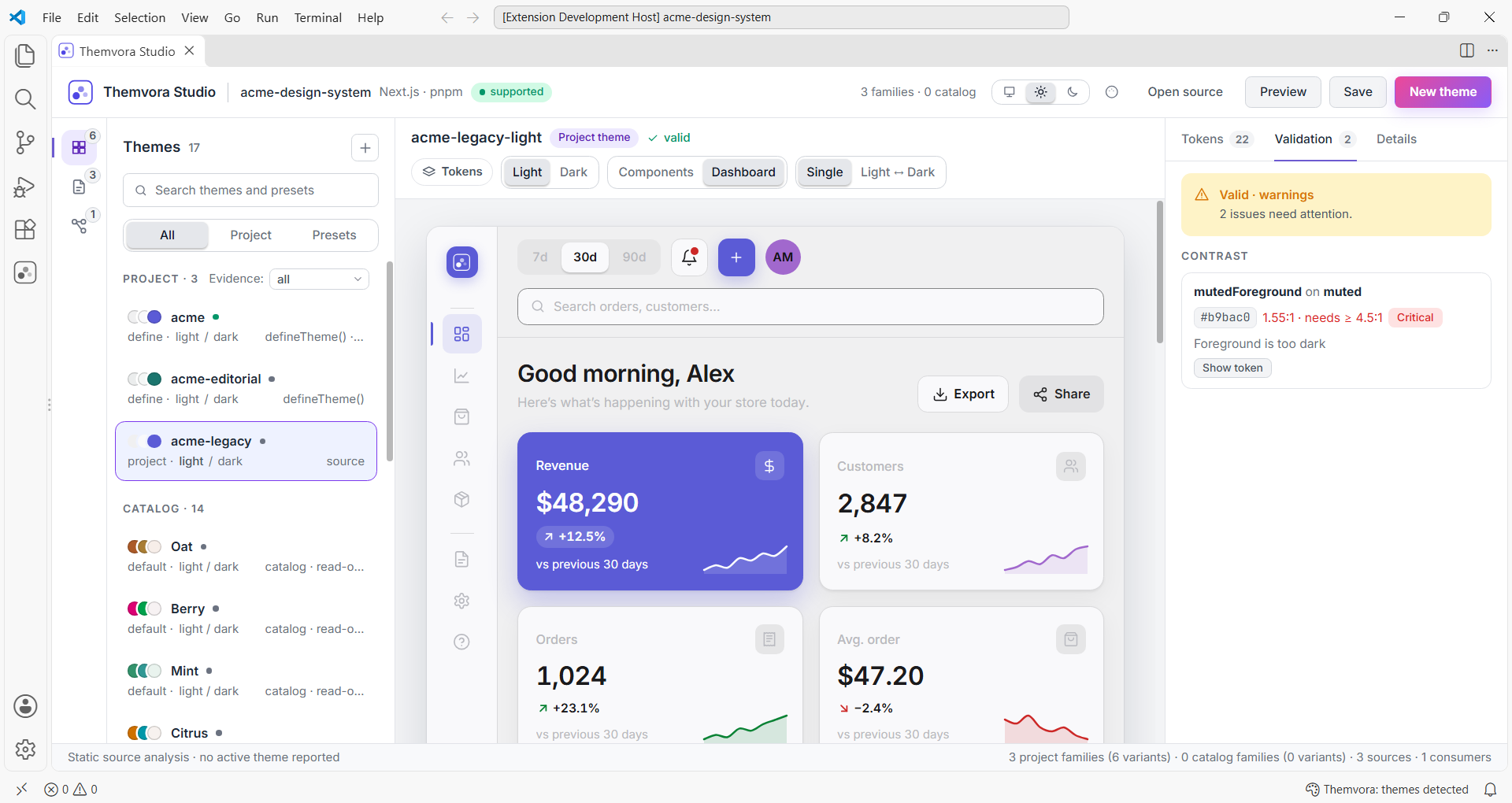
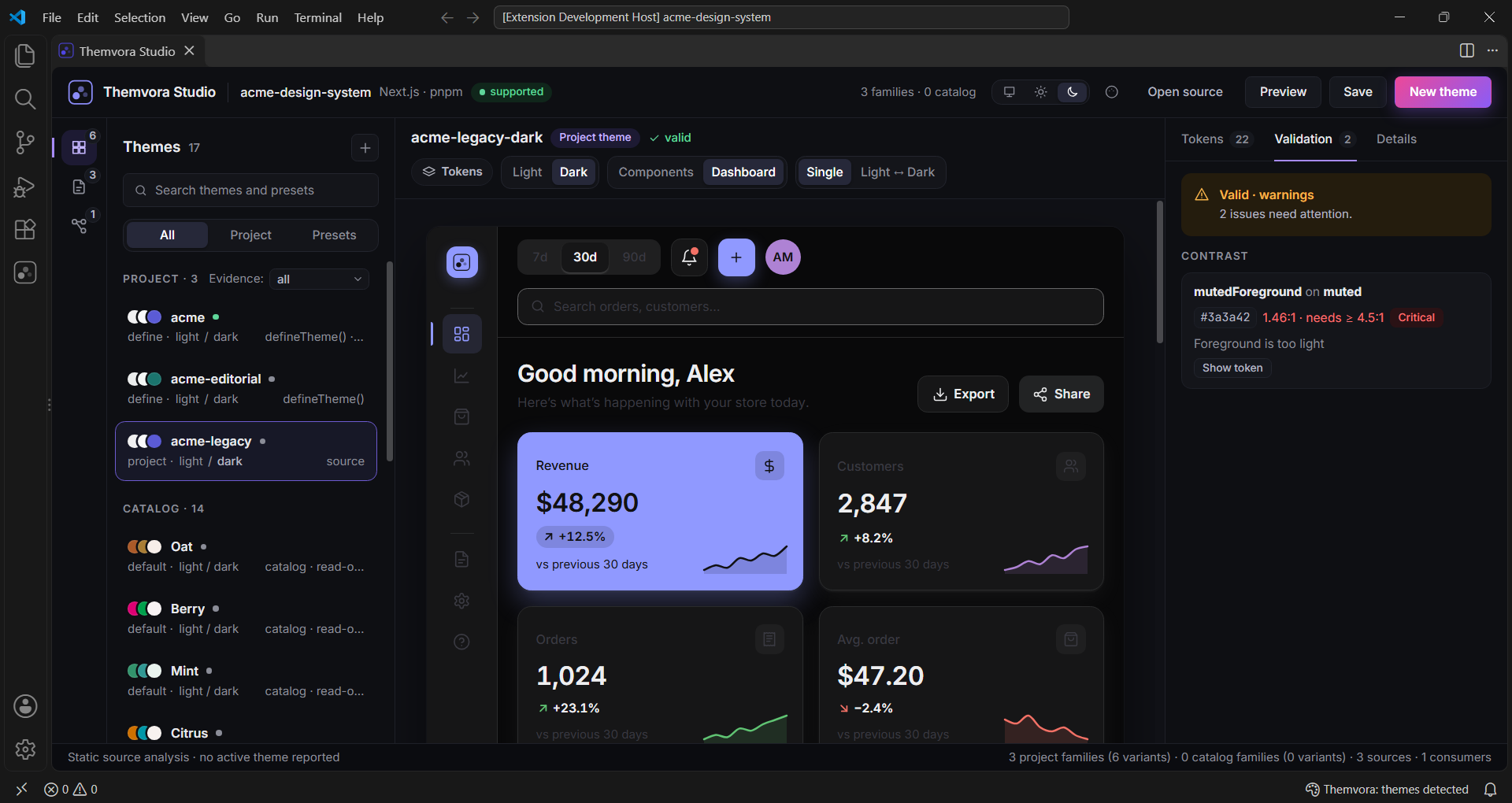
The validator names the token that fails, the ratio it measures, the floor it has to reach, and which side is wrong — foreground too light, or background too dark. That is usually enough to know what to change without opening a contrast calculator. It checks the theme, not your application: a passing theme still has to be used well.
Compare themes
Comparing two themes shows what semantically differs between them, mode by mode, rather than a wall of changed lines. It is the quickest way to answer “what would actually change if we moved to this palette?” before switching a project over.
Copy CSS variables
Select a theme, or one variant of a family, and copy its CSS custom properties. Useful when the variables need to land somewhere that is not a Themvora project — a stylesheet, a prototype, a design tool, a bug report.
Understand what your project actually has
The workspace panel answers the questions a file tree cannot: is this a Themvora project, which framework is it, which packages are declared, and are they installed. Declared and installed are listed separately, because a package in package.json that is missing from node_modules is exactly the state that breaks an app. Studio also shows where each theme is defined and which files receive it, and can open that exact line.
2Get started
Install the extension
Install Themvora for VS Code and reload the window. A Themvora icon appears in the Activity Bar.
Open a project — or skip this
Studio reads themes from the folder you have open. No project yet? Browse Presets works anywhere, because the catalog ships with the extension.
Run Themvora: Open Theme Studio
Press Ctrl+Shift+P (Cmd+Shift+P on macOS), type “Themvora”, and pick Open Theme Studio.
Pick a theme or preset
The library lists your project's themes, then the catalog. Select one and the canvas and inspector both follow it.
Look at it, then read it
Switch the canvas between Dashboard and Components, toggle light and dark where the family has both, and read each token's value and contrast in the inspector.
Validate, compare, or start a draft
Check a palette against the validator, diff it against another theme, or open New theme to generate or define your own.
Save or copy what you need
Save a draft as JSON, TypeScript with defineTheme(), or CSS variables — or copy the variables straight to the clipboard.
3Commands
| Command | What it does |
|---|---|
| Themvora: Open Theme Studio | Opens the Studio: theme library, preview canvas and inspector in one panel.Your starting point for any project that uses Themvora. |
| Themvora: Browse Presets | Lists the built-in preset catalog with the recipe behind each preset.You want inspiration, or you have no project set up yet. |
| Themvora: Preview Theme | Opens the preview panel for the theme file you are editing. Running it again updates the same panel.You are editing a theme file and want to see it without switching windows. |
| Themvora: Generate Theme… | Asks for a seed colour, generates a light and dark pair, and opens it as an unsaved draft.You want a starting point instead of hand-picking every token. |
| Themvora: Validate Theme… | Checks a theme file and reports what fails, on which token, and by how much.Before you commit a palette, or after editing one by hand. |
| Themvora: Compare Themes… | Shows what actually differs between two themes, mode by mode.You are weighing a new palette against the one already in use. |
| Themvora: Copy CSS Variables | Validates a theme, turns it into CSS custom properties and copies them.You need the variables in a stylesheet, a prototype or a design tool. |
| Themvora: Refresh Project | Re-reads every workspace folder and updates the panel.A file changed without a save event — a branch switch, or a CLI run. |
The Studio also adds inline help while you edit a theme file: diagnostics on failing tokens, hovers explaining what each semantic role is for, and colour swatches next to values.
4Requirements and behaviour
- VS Code 1.94.0 or newer.
- No global CLI install required. Everything the extension needs ships inside it, so it works in a project that has never run the Themvora CLI.
- No project required to browse presets. The catalog is built in.
Unsaved drafts live in memory
A draft you have not saved survives closing the Studio, but not restarting VS Code. Nothing is written to your project until you save.
Studio works on one folder
In a multi-root workspace the workspace panel lists every folder, but Studio reads the first one.
Source analysis is not runtime state
Studio can prove that a component receives a theme. Which theme an app actually selects at runtime depends on storage, media queries and user choice, so Studio never claims a theme is active.
Themes that compute their values are not read
Themes written as plain definitions are read. A theme assembled from function calls or computed values is listed with the reason it could not be read, rather than guessed at.
Some CLI commands are not in the editor
The extension does not run init, add, doctor or export from the CLI. Use the CLI for those.
Your code stays yours. The extension reads theme files and nothing else: it does not run your project's code, does not change your editor theme, sends no telemetry, and makes no network request.
6Documentation and support
- Extension README — the same feature set, plus troubleshooting.
- Architecture notes — for contributors: boundaries, invariants and verification.
- Issue tracker — bugs and feature requests.
- Get started with Themvora — set up the library in an application first.
- CLI reference — the terminal counterpart, including the commands the editor does not run.